O'Pay Settings
This tutorial explains how to obtain the HashKey and HashIV from O'Pay and enter them into Stream Toolkit.
Step 1: Log in to the O'Pay Merchant Dashboard
-
Go to the O'Pay official website and log in
-
After logging in, click the top right corner to enter the merchant dashboard

If you don't have an O'Pay account yet, you must first complete the store application and identity verification.
Step 2: System Development Management
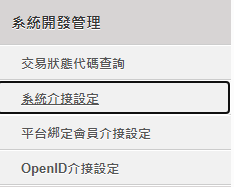
- Find System Development Management in the left menu
- Click System Integration Settings
Step 3: Fill in Stream Toolkit
-
Open Stream Toolkit
-
Click Settings in the bottom left menu
-
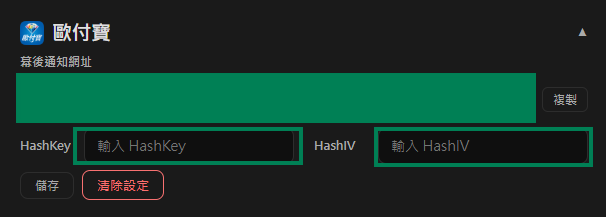
Find O'Pay in Donation Platform Integration
-
Paste the ALL IN ONE Integration HashKey and ALL IN ONE Integration HashIV from System Integration Settings into the Hash Key and Hash IV fields, respectively

-
Click Save
Step 4: Set Notification URL
-
Copy the O'Pay Webhook URL

-
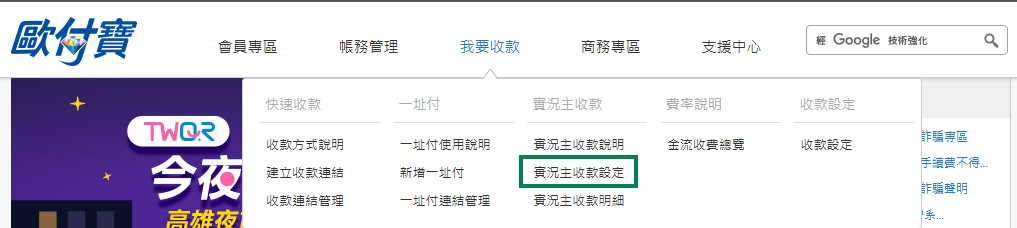
Return to the O'Pay official website and click Receive Payments → Streamer Payment Settings
-
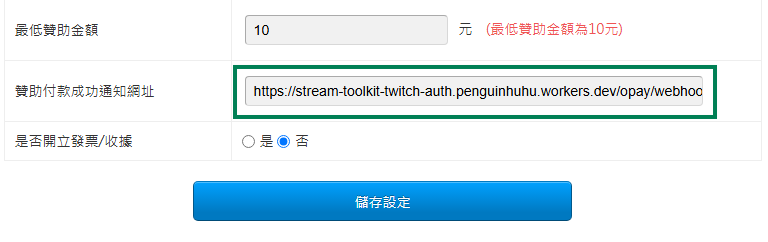
Paste the Webhook URL into the Donation Payment Success Notification URL field
-
Click Save Settings
FAQ
Q: Can't find the "System Development Management" menu? This means your account has not been approved yet, or the relevant payment features have not been enabled. Please contact O'Pay customer service.
Q: Can HashKey be made public? No. HashKey and HashIV are private keys; please do not share screenshots or post them in public.