PayPal Settings
Stream Toolkit uses Webhooks to receive PayPal payment notifications, so there is no need to enter an API key.
Step 1: Get the Webhook URL in Stream Toolkit
- Open Stream Toolkit
- Click Settings in the bottom left menu
- Find Donation Platform Integration → PayPal
- Click the Get URL button
- Once the URL is generated, click the Copy button

:::warning Warning The Webhook URL contains a private token; please do not share it publicly. If you suspect it has been leaked, you can click Regenerate URL to issue a new one (the old URL will become invalid immediately). :::
Step 2: Log in to the PayPal Developer Dashboard
- Go to PayPal Developer
- Click Log in to Dashboard in the top right corner and log in with your PayPal account
- After logging in, click the
</>button in the top right corner to enter the developer backend

Step 3: Switch to Live Mode
Make sure the mode switch above the left menu is set to Live. You only need to switch if it shows Sandbox (test mode):
- Locate the toggle switch above the left menu
- Click to switch to Live

Step 4: Go to Webhooks Settings
-
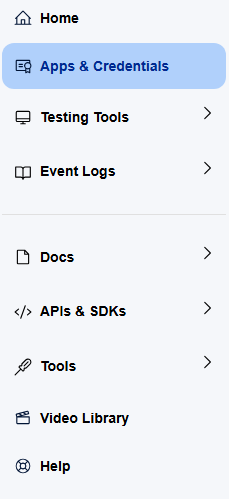
Click Apps & Credentials in the left menu
-
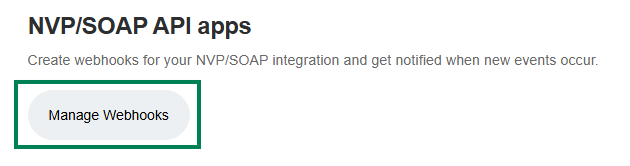
Locate the Manage Webhooks button on the page and click it to enter
-
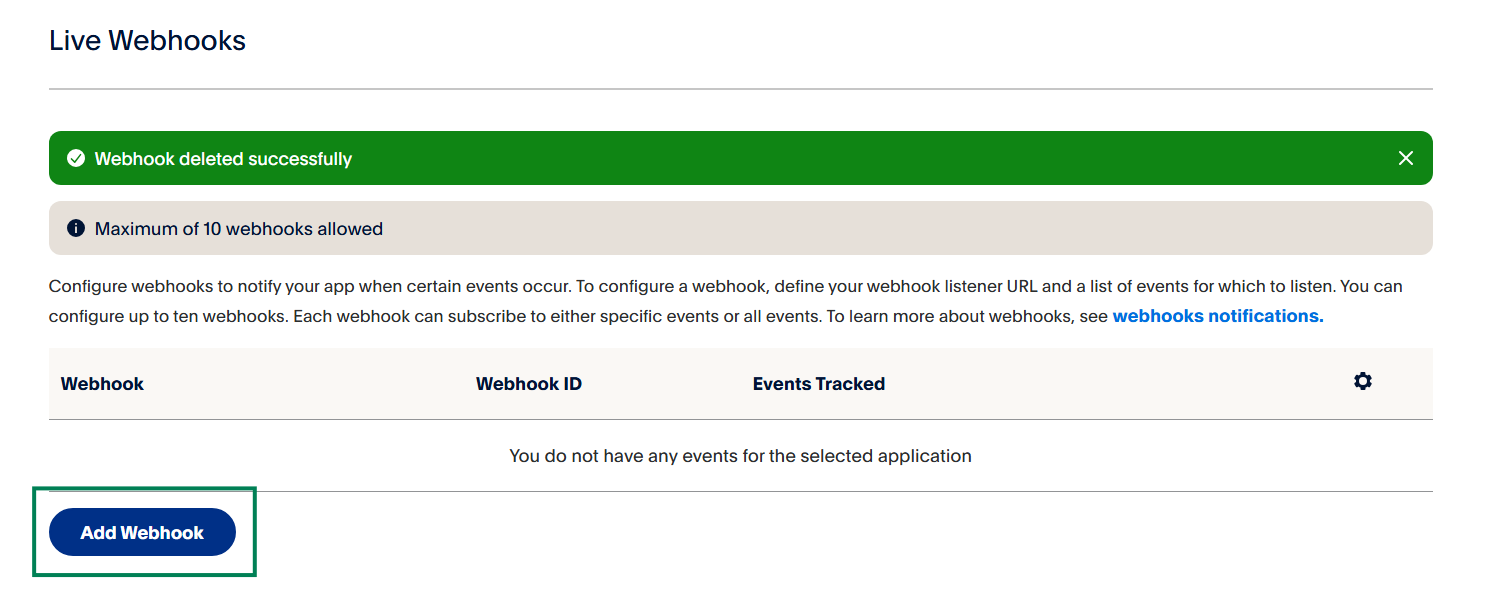
Scroll to the very bottom of the page and click Add Webhook
Step 5: Add Webhook
- Paste the URL you just copied from Stream Toolkit into the Webhook URL field
- In Event types, find the Payments & payouts category and check:
- ✅
Payment capture completed - ✅
Payment sale completed
- ✅
- Click Save
Once the settings are complete, when viewers make payments through PayPal, Stream Toolkit will receive notifications in real time.
FAQ
Q: Can I test in Sandbox mode? Yes. You can also add a Webhook in Sandbox mode to test the payment process, but no real money will be received.
Q: What should I do if the Webhook URL is regenerated? You need to return to the PayPal Dashboard and replace the old Webhook URL with the new one.