Stripe Settings
Stream Toolkit receives Stripe payment notifications via Webhooks. The setup consists of two parts: obtaining the Webhook URL from the app, and completing the integration in the Stripe Dashboard.
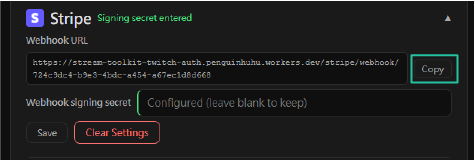
Step 1: Get the Webhook URL in Stream Toolkit
- Open Stream Toolkit
- Click Settings in the bottom left menu → Donation Platform Integration → Stripe (Click to expand)
- You will see the Webhook URL, formatted as follows:
https://<worker>/stripe/webhook/<your userId>
- Click the Copy button and save this URL for later use
Step 2: Add a Webhook in the Stripe Dashboard
- Go to Stripe Dashboard and log in to your account
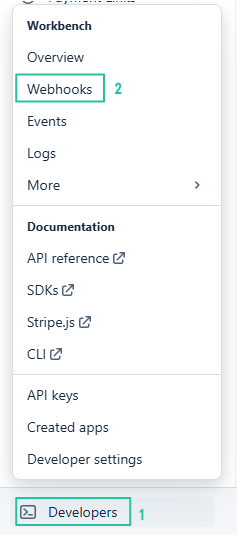
- Click Developers → Webhooks in the bottom left corner
- Click Add endpoint

-
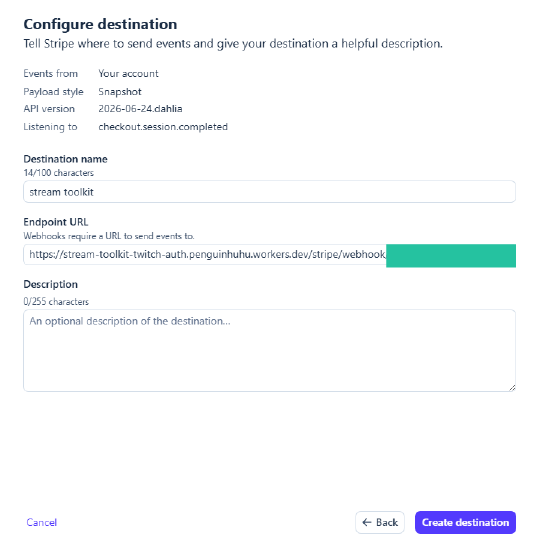
Fill in the following information:
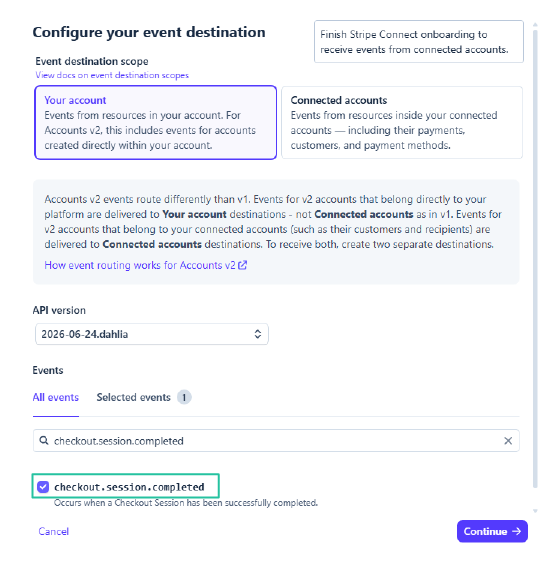
- Events: Search for and check
checkout.session.completed(only this one is needed)
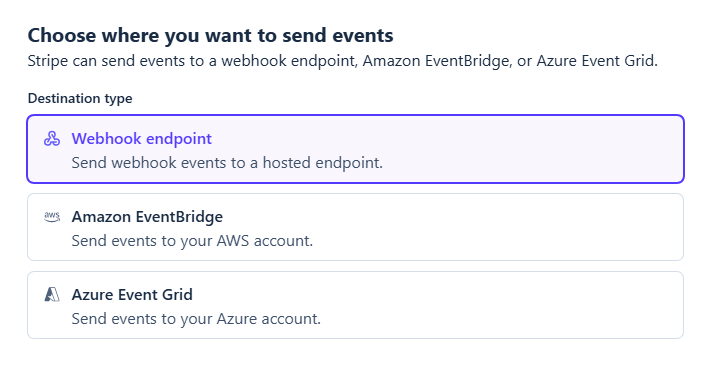
- Endpoint type: Select Webhook endpoint
- Endpoint name: Fill in anything you like (e.g.,
Stream Toolkit) - Endpoint URL: Paste the Webhook URL copied from Step 1
- Events: Search for and check
-
Click Add endpoint
Step 3: Enter the Signing Secret
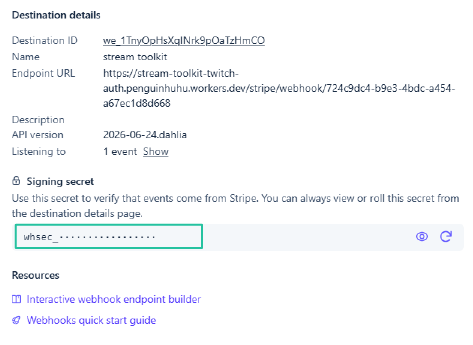
- Once the Webhook is created, the page will display the Signing Secret in the format
whsec_... - Copy this secret
- Return to the Stripe settings section in Stream Toolkit
- Paste the secret into the Webhook Signing Secret field
- Click Save
The setup is successful when the connection status turns green.
Done
Once the setup is complete, when viewers make payments through your Stripe Payment Link, Stream Toolkit will receive real-time notifications and display the donation.
FAQ
Q: Where can I create a Payment Link? Go to Stripe Dashboard → Payment Links → Create Payment Link, set the amount, and share the link with your viewers.
Q: Why is the connection status not green? Ensure the Webhook Signing Secret is correctly pasted and saved, and that the endpoint URL in the Stripe Dashboard exactly matches the one displayed in the app.