YouTube API Settings
This tutorial explains how to obtain the API Key and Channel ID for the YouTube Data API, used for the Stream Highlight Marker feature.
YouTube Data API
Step 1: Open Google Cloud Console
- Go to Google Cloud Console
- Log in with your Google account
Step 2: Enable YouTube Data API v3
-
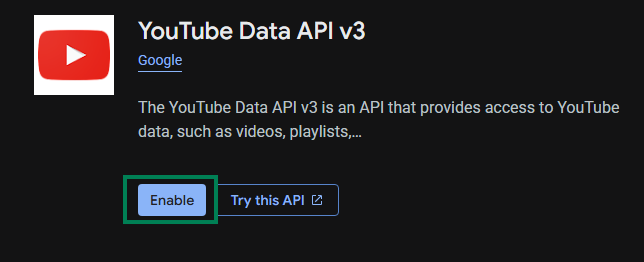
Search for
YouTube Data API v3in the top search bar
-
Click on the search result
-
Click Enable
Step 3: Create API Key
-
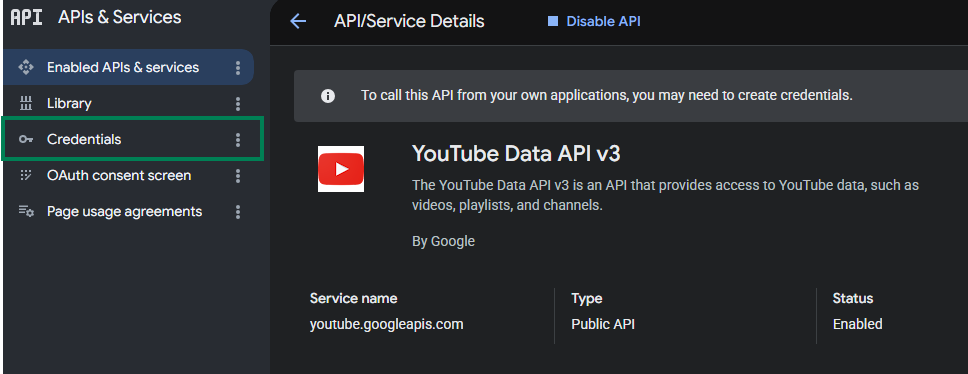
Click Credentials on the left
-
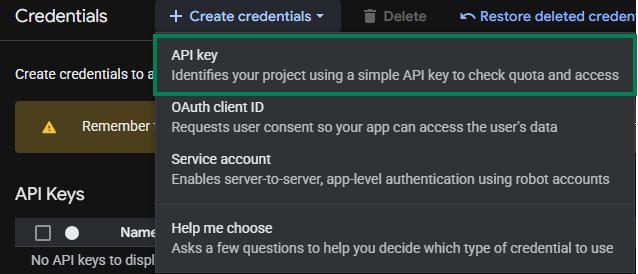
Click Create credentials → API Key
Step 4: Configure API Key
-
Enter any Name (e.g.,
StreamToolkit) -
Under Select API restrictions, check
YouTube Data API v3and click OK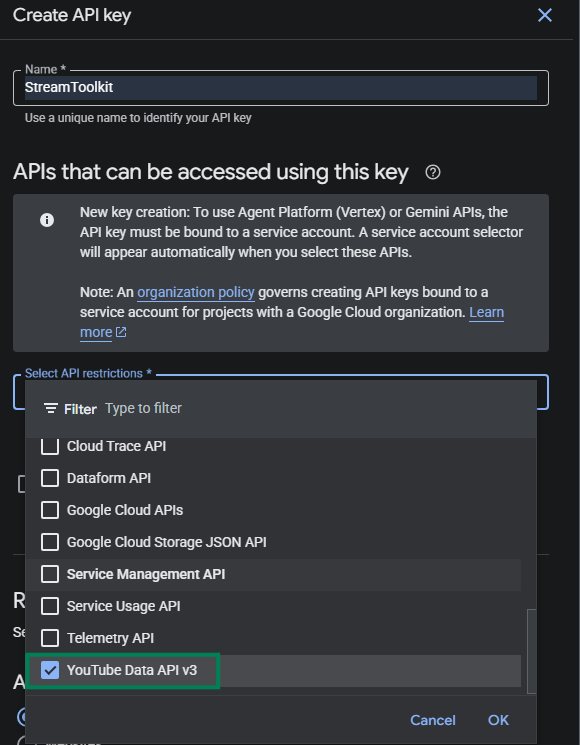
-
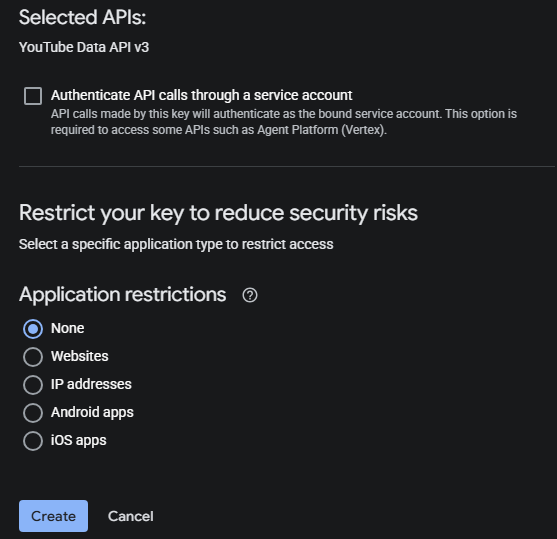
Leave Authenticate API calls through a service account unchecked
-
Select None for Application restrictions
-
Click Create
Step 5: Fill into the App
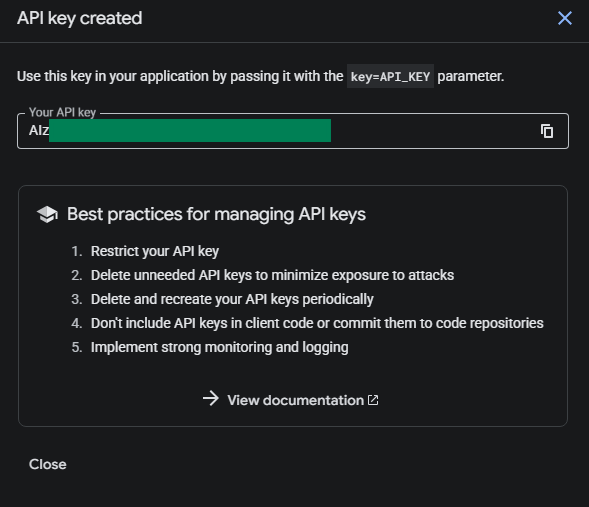
- Paste the obtained API Key into the YouTube API field in the App
Channel ID
Step 1: Open YouTube Settings
- Go to YouTube
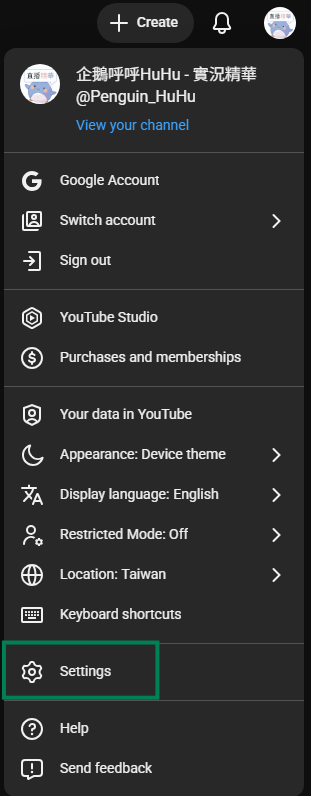
- Click your profile picture in the top right corner
- Select Settings
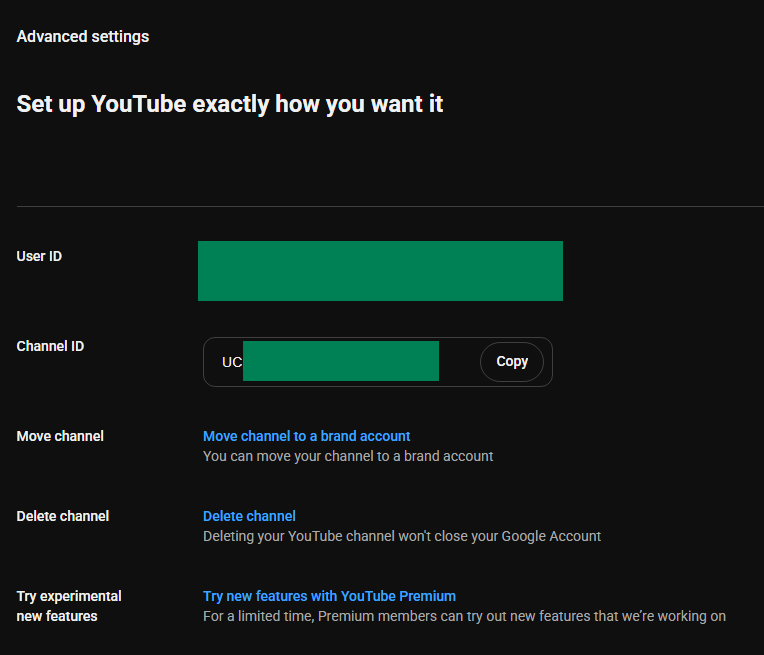
Step 2: Get Channel ID
-
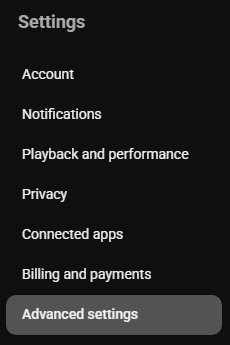
Select Advanced settings from the left menu
-
Copy the Channel ID and paste it back into the App
FAQ
Q: Are there usage limits for the API Key? Yes. The YouTube Data API v3 has a free daily quota of 10,000 units. Normal streaming usage will not exceed this limit.
Q: Getting an "Invalid API Key" error? Make sure that the YouTube Data API v3 is enabled and that you are using the key from the correct project.
Q: Can the key be made public? Not recommended. If your key is leaked and abused, your daily quota will be depleted quickly.